
Language Settings: Difference between revisions
Created page with "= Language Settings = == Language Switch == * On the web version, find the language dropdown menu in the top bar of the homepage. By clicking it, you can select the language you want to use. This option will change the display language of the application. * In the app, go to "My Page" and select the Settings button in the top right corner. Then enter the Language page to switch languages. == Auto-translate Character Information == * If the language you choose..." |
No edit summary |
||
| Line 4: | Line 4: | ||
* On the web version, find the language dropdown menu in the top bar of the homepage. | * On the web version, find the language dropdown menu in the top bar of the homepage. | ||
By clicking it, you can select the language you want to use. This option will change the display language of the application. | By clicking it, you can select the language you want to use. This option will change the display language of the application. | ||
[[File:Image (13).jpg|none|thumb|666x666px]] | |||
* In the app, go to "My Page" and select the Settings button in the top right corner. | * In the app, go to "My Page" and select the Settings button in the top right corner. | ||
Then enter the Language page to switch languages. | Then enter the Language page to switch languages. | ||
[[File:Image (14).jpg|none|thumb|630x630px]] | |||
== Auto-translate Character Information == | == Auto-translate Character Information == | ||
* If the language you choose is different from the character’s original language, you can turn on the Auto translate character’s info option in Settings. | * If the language you choose is different from the character’s original language, you can turn on the Auto translate character’s info option in Settings. | ||
* When enabled, the character’s Introduction and Greeting will automatically be translated into your selected language. | * When enabled, the character’s Introduction and Greeting will automatically be translated into your selected language. | ||
* [[File:Image (15).jpg|none|thumb|598x598px]] | |||
Example: If the character’s original language is English and you choose French as the display language, the character’s introduction and greeting will be translated into French. | Example: If the character’s original language is English and you choose French as the display language, the character’s introduction and greeting will be translated into French. | ||
| Line 17: | Line 20: | ||
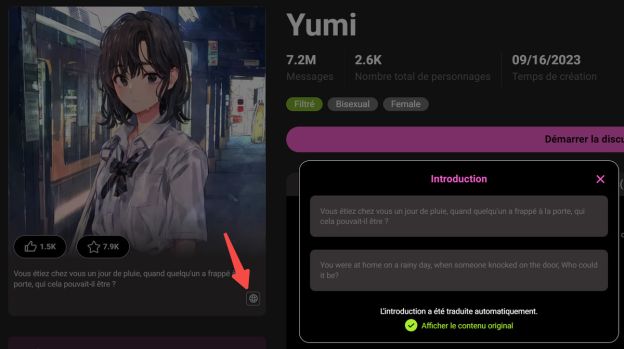
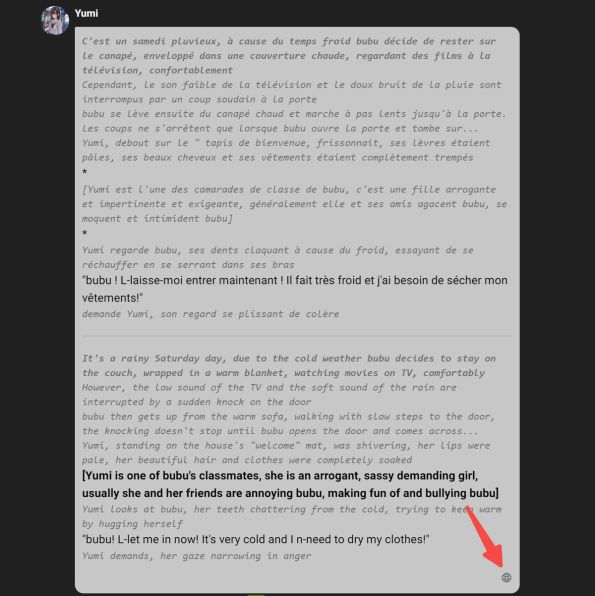
* A small globe icon appears at the bottom of the character’s introduction or greeting. | * A small globe icon appears at the bottom of the character’s introduction or greeting. | ||
* Clicking this icon will expand the translated content, showing both the translated text and the original text. | * Clicking this icon will expand the translated content, showing both the translated text and the original text. | ||
* [[File:Image (16).jpg|none|thumb|624x624px]][[File:Image (17).jpg|none|thumb|596x596px]] | |||
== Disabling Auto-translation == | == Disabling Auto-translation == | ||
Latest revision as of 04:05, 22 September 2025
Language Settings
Language Switch
- On the web version, find the language dropdown menu in the top bar of the homepage.
By clicking it, you can select the language you want to use. This option will change the display language of the application.
.jpg)
- In the app, go to "My Page" and select the Settings button in the top right corner.
Then enter the Language page to switch languages.
.jpg)
Auto-translate Character Information
- If the language you choose is different from the character’s original language, you can turn on the Auto translate character’s info option in Settings.
- When enabled, the character’s Introduction and Greeting will automatically be translated into your selected language.

.jpg)
Example: If the character’s original language is English and you choose French as the display language, the character’s introduction and greeting will be translated into French.
Viewing Translated Content
- A small globe icon appears at the bottom of the character’s introduction or greeting.
- Clicking this icon will expand the translated content, showing both the translated text and the original text.
.jpg)
.jpg)
Disabling Auto-translation
- If you do not want automatic translation, turn off the Auto translate character’s info option.
- When off, the introduction and greeting will remain in the original language without translation.
This setting allows you to understand character information seamlessly in a multilingual environment, while giving you the flexibility to choose whether translation is applied.